You open your support email at 9 am. Inbox overload again? You’re playing hide and seek with your mailbox – Customer emails are hidden among promotional emails, newsletters, and spam! Wish you had a system that suppresses the noise?
Angry customers? Are incoming emails getting ignored? You stumble through your inbox, anxious about irate customers whom you never replied to. Or did the reply take more than a day to compose as you were drowning in work?
Automation means using software to do tasks automatically instead of doing them manually. For example, when an email comes in, the system can read it, understand it, and reply without your help. This saves time and reduces repetitive work.
n8n email automation helps you handle emails automatically without manual work. It can read incoming emails, understand the message using AI, and take actions like replying or creating tasks.
In this guide, you will learn how to build an n8n email automation workflow to solve your pain points. Note that this is an example workflow – I offer customization services to fit your exact needs.
What is n8n Email Automation?
n8n is a tool that helps you connect different apps and automate tasks without manual work. It works like a workflow builder where you set steps, and the system runs them automatically.
Automation has become an essential part of any business. Manual, repetitive processes need to be automated. Like email classification and replies. Invoice processing and storage. Social Media creation with a human review. Thus, n8n automation saves your time and money!
There are many types of n8n Email Automation.
- Auto-Reply Workflows
- Send instant replies when an email is received
- Example: “We received your message, we will reply soon”
- AI-Based Response Workflows
- AI reads the email and writes a reply
- Used in customer support and FAQs
- Email Filtering and Routing
- Sort emails into folders or labels
- Forward emails to the right team or person
- Lead Capture and Follow-Up
- Capture leads from emails or forms
- Send follow-up emails automatically
- Ticket Creation Workflows
- Convert emails into support tickets
- Send them to tools like Trello, Notion, or helpdesk systems
- Drip Email Campaigns
- Send a series of emails over time
- Used in marketing and onboarding
- Notification and Alert Workflows
- Send alerts for important emails
- Example: high-priority customer message
- Email Parsing and Data Extraction
- Extract data like name, phone, or request
- Store it in a database or CRM
- Approval-Based Workflows
- Send emails for approval (leave, invoices, etc.)
- Take action based on response
- Cold Outreach Automation
- Send personalized emails to prospects
- Follow up automatically if no reply
In my workflow, I do Email filtering, AI-powered email classification and ticket creation. Also, you are notified via Telegram.
What my workflow does
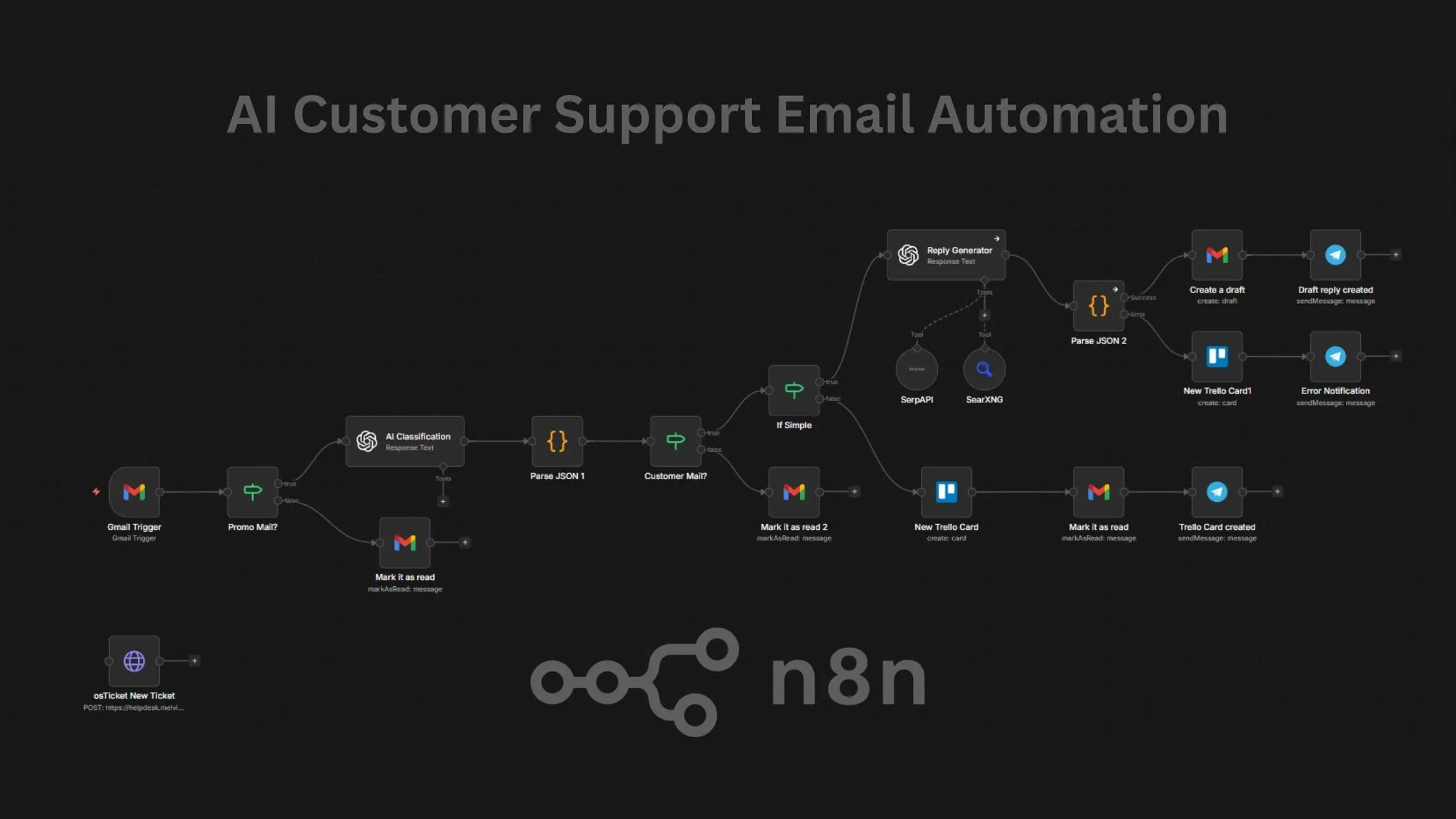
My n8n email automation workflow intelligently handles your emails, with a focus on customer support. It polls for new, unread emails. Then it filters promotional emails and newsletters. The rest is sent to an AI classification node and is labelled as simple / complex according to whether it can be answered by our FAQ or not. If it is a customer mail, it is labelled as such.
Next comes a few logical steps. If the mail is a customer mail and simple, it is sent to a Reply Generator AI node that drafts a reply to the customer according to the data in our FAQ’s. A draft is then created in Google Workspace and a notification is sent to the customer support team via Telegram.
If the mail is “complex”, the customer support team is alerted via various methods. First, a Trello card is created with the email subject and body. An AI analysis is also added for convenience. Instead of a Trello card, I have also tried creating a Freshdesk ticket and an osTicket ticket using their API’s. Lastly, the customer support team is notified using Telegram.
Tools You Need
To build this n8n email automation system, you need a few simple tools. First, you need n8n, which is the main automation platform. Then, you need a Gmail / Google Workspace account to receive and send emails.
You also need a Trello account to manage tasks for complex issues. Finally, you need an API key for an AI tool like OpenAI, which helps read and classify emails and generate replies. These tools are easy to set up and work well together.
How does my n8n workflow work?
I will guide you step by step on how the n8n automation workflow is set up.
Gmail Trigger
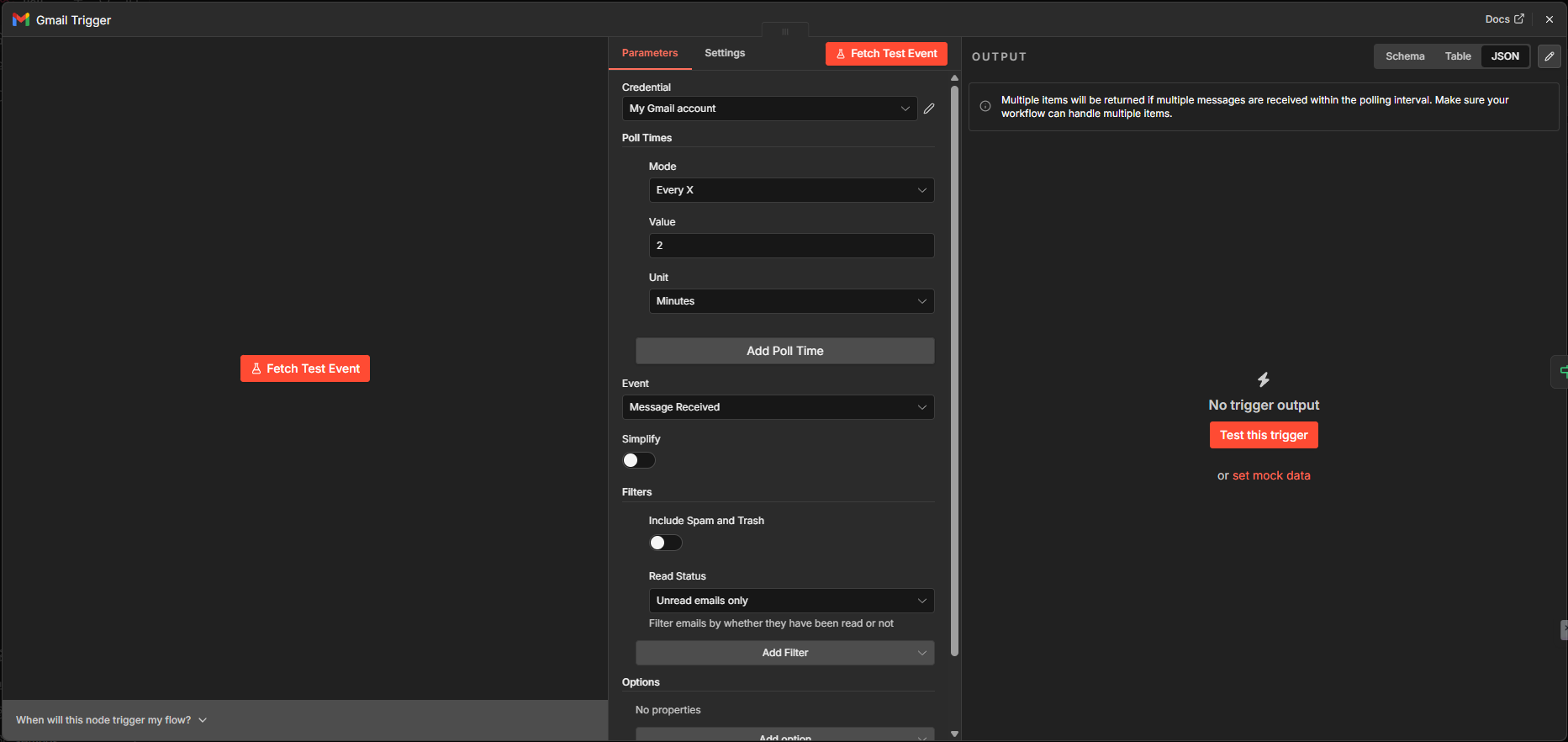
Using the Gmail trigger node, I added it to the canvas and set up its credentials. I poll for new emails every 2 minutes (It was set to 1 min., but I did not want to overload the server.) You can set it to any time interval you want. Turned “Simplify” off. Added 2 filters: “Include Spam and Trash = off, Unread emails only.
Thus, this node will fetch new, unread emails excluding spam and trash from Gmail every 2 minutes.
Promotional Mail?
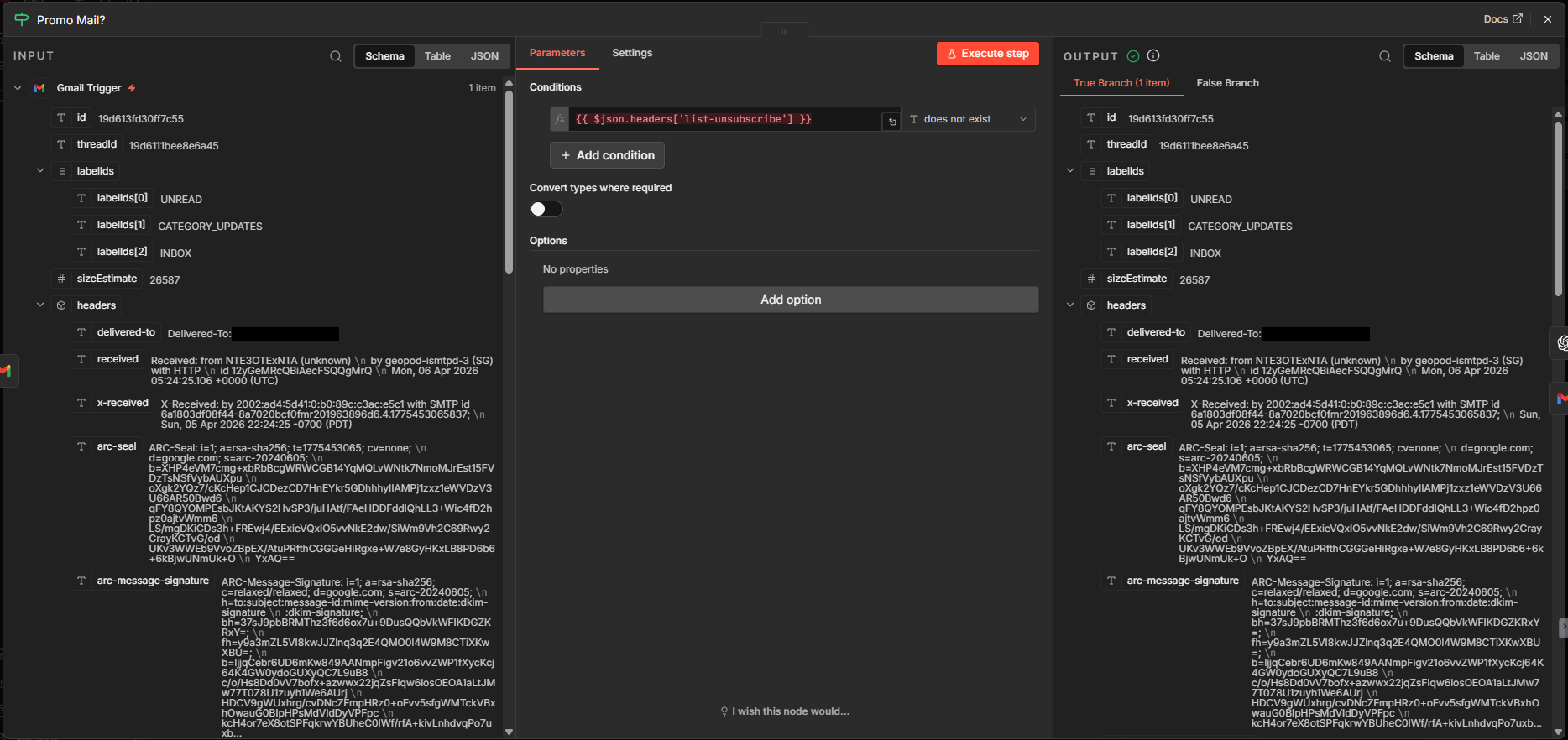
I used an IF node to identify promo mails and newsletters and mark them as read, so that they are not picked up again by the Gmail trigger node.
Within the Gmail headers from the previous node, I look for a header called list-unsubscribe to identify promo mails and newsletters that should have an unsubscribe link…
AI Classification
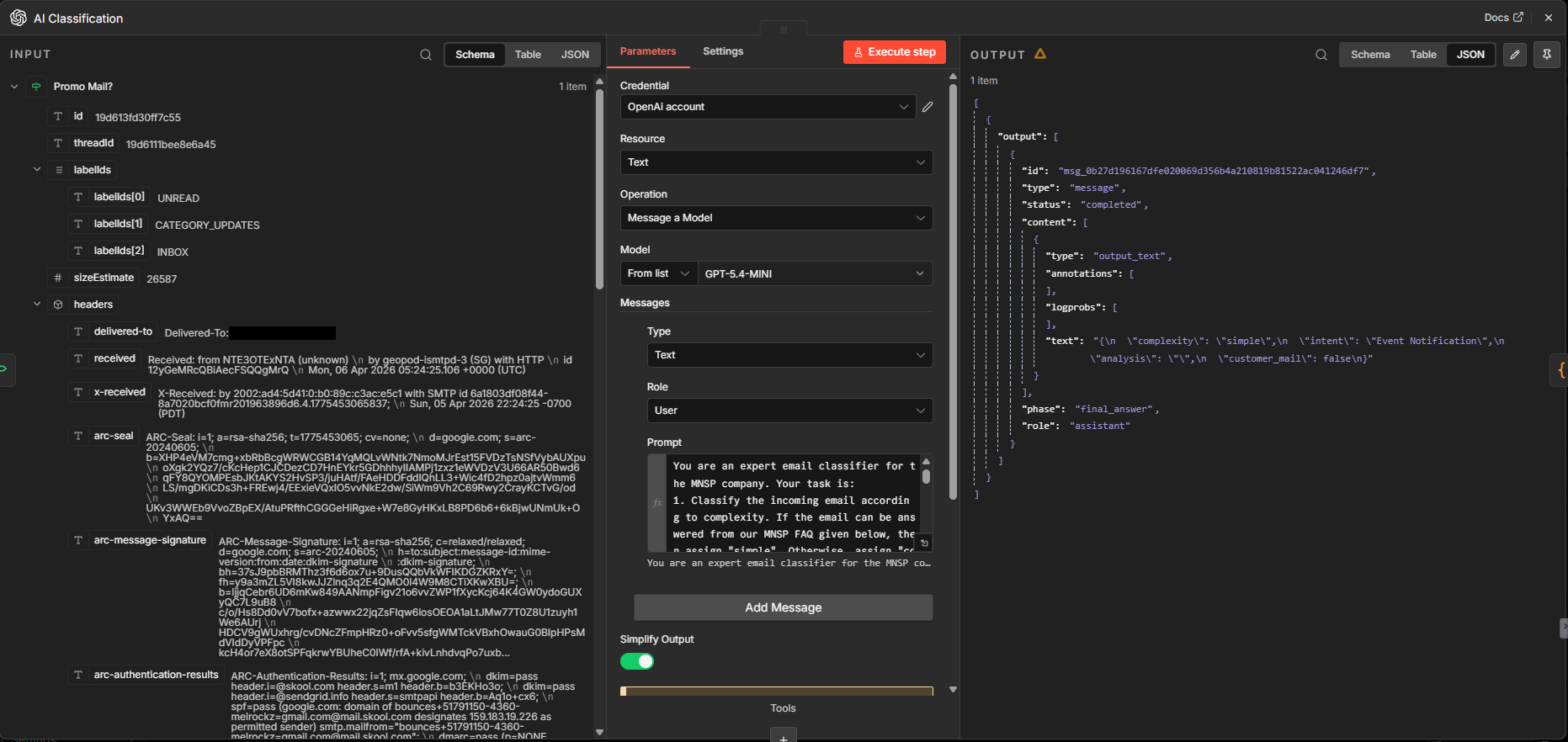
The mail is then sent to an OpenAI node for classification. Added an OpenAI node with the action “Message a model”. Selected the model gpt-5.4-mini. And added a suitable User prompt so that I get a favorable JSON output:
1. Complexity: simple / complex. This is assigned by the AI based on whether a reply can be generated automatically from the provided company FAQs.
2. Intent: AI assigns a category to the email based on its content.
3. Analysis: AI generated analysis of why this email requires human review.
4. Customer Email: true / false. If the AI thinks that it is a customer mail, it is set to true.
Parsing JSON
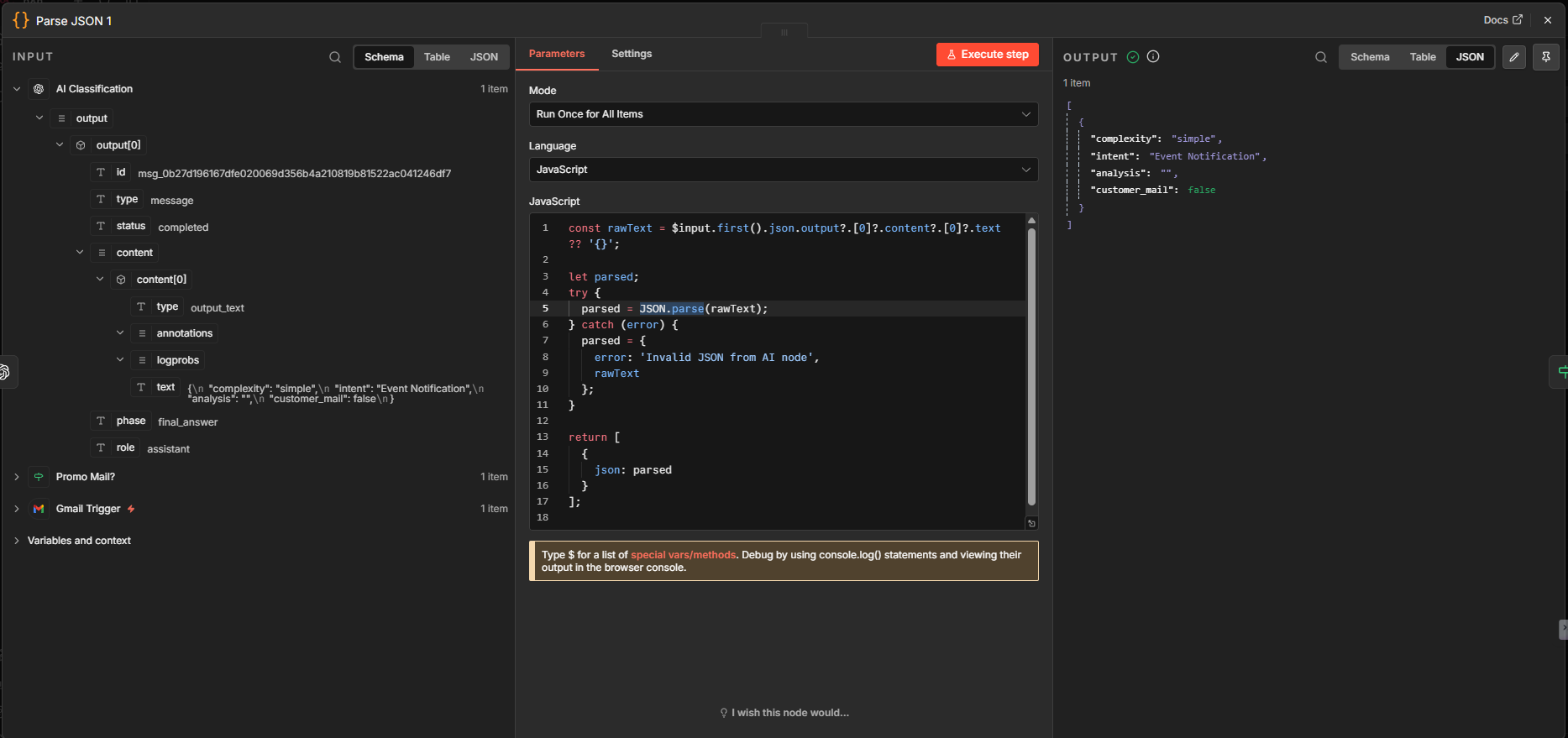
Using a Code node, I parse the JSON obtained from the previous AI node. The Code node is the only node in n8n that accepts JavaScript and Python to do advanced data transformations. You do not need to be an expert in JavaScript. Just generate the code using an AI LLM and review it for errors.
The code uses the JSON.parse method to parse the input into a JS object, which is returned as an array of objects (standard n8n data format). Here’s a sample output:
					[
  {
    "complexity": "simple",
    "intent": "Event Notification",
    "analysis": "",
    "customer_mail": false
  }
]
Customer Mail? Simple or Complex?
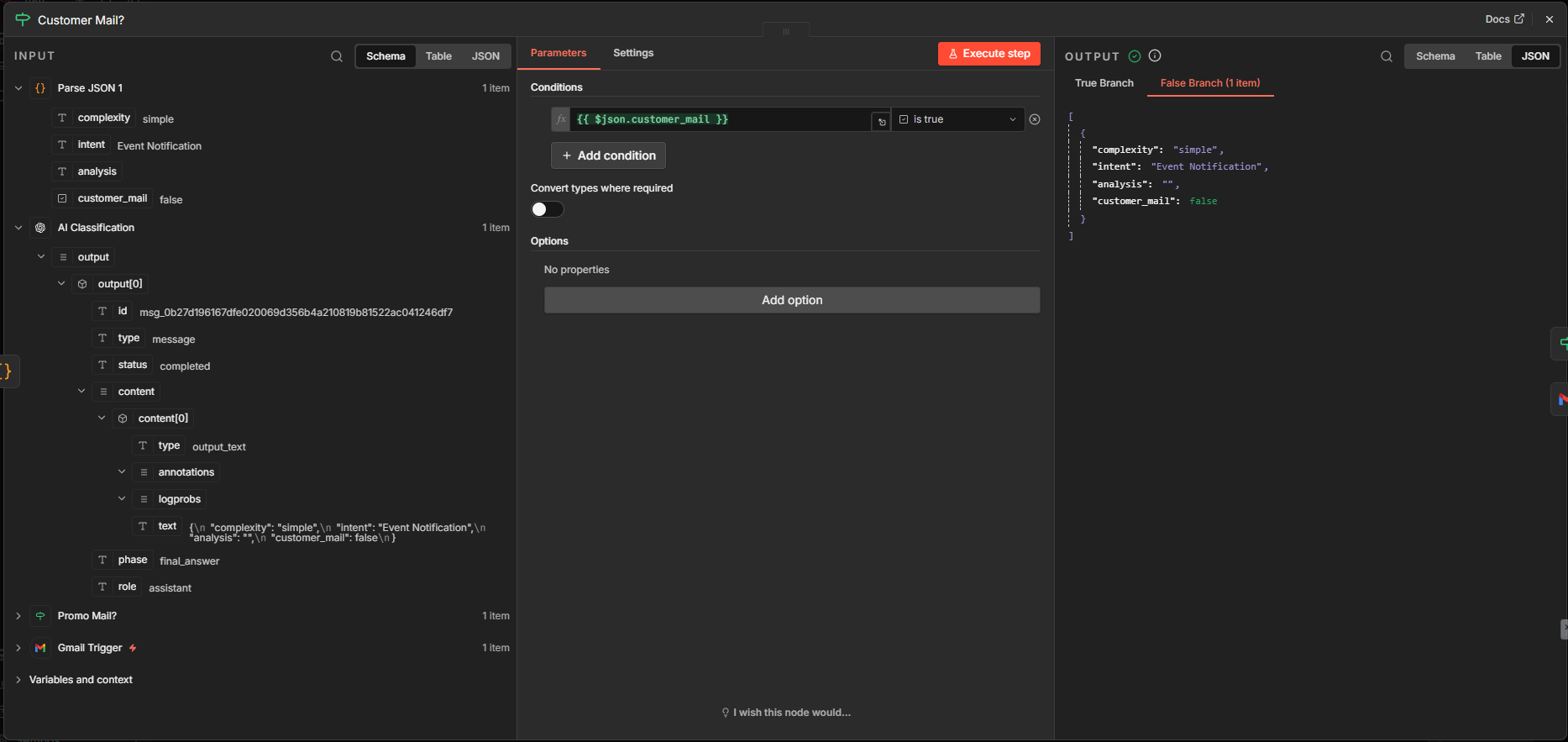
Next, an IF node checks if the `customer_mail` key’s value is true or false. If it is not a customer mail, it ends up marked as read.
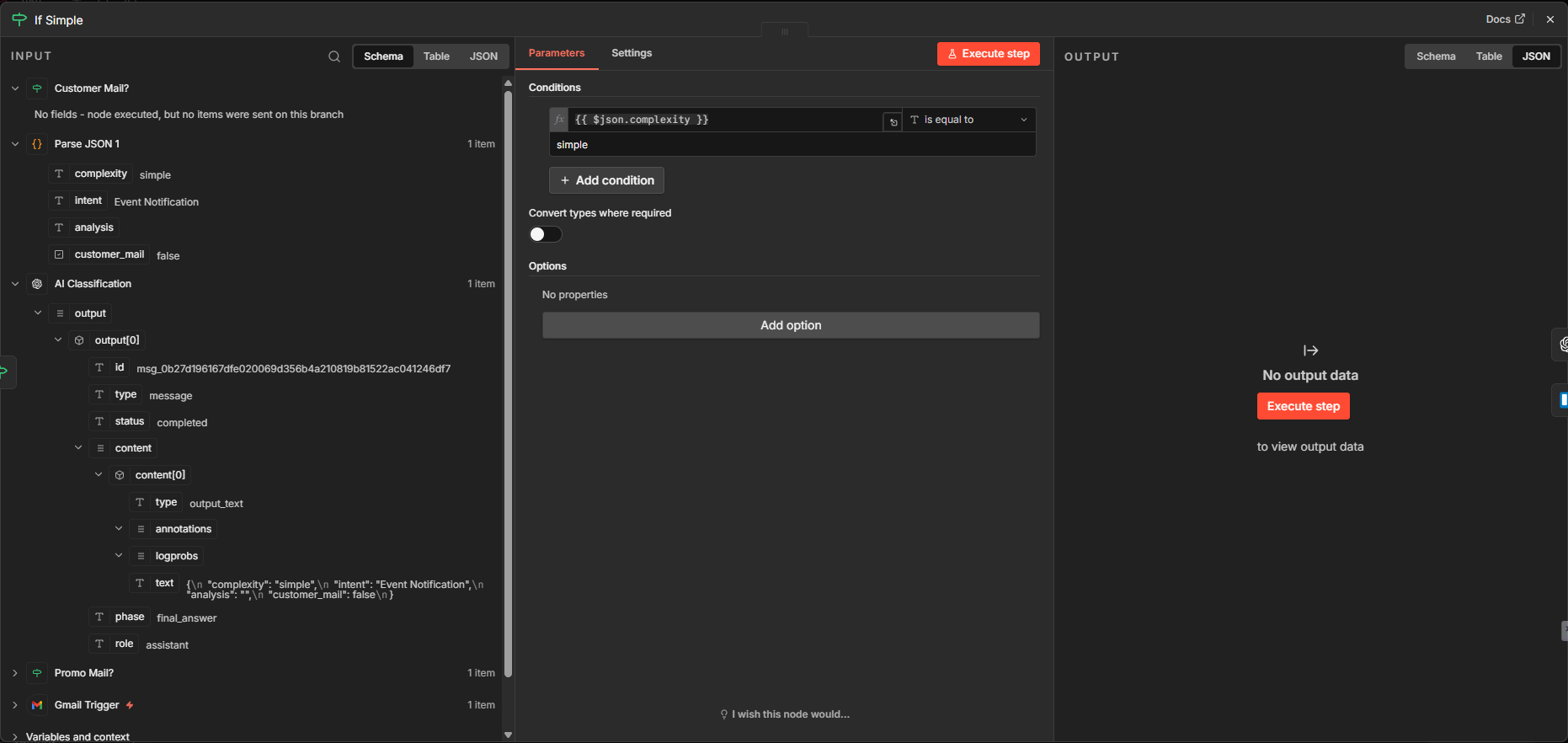
But if it is a customer mail, it is sent to another IF node that checks the complexity key to switch paths based on whether the email is simple or complex. Simple mails are sent to the Reply Generator, while the complex ones are sent for human review as a Trello card.
Reply Generator
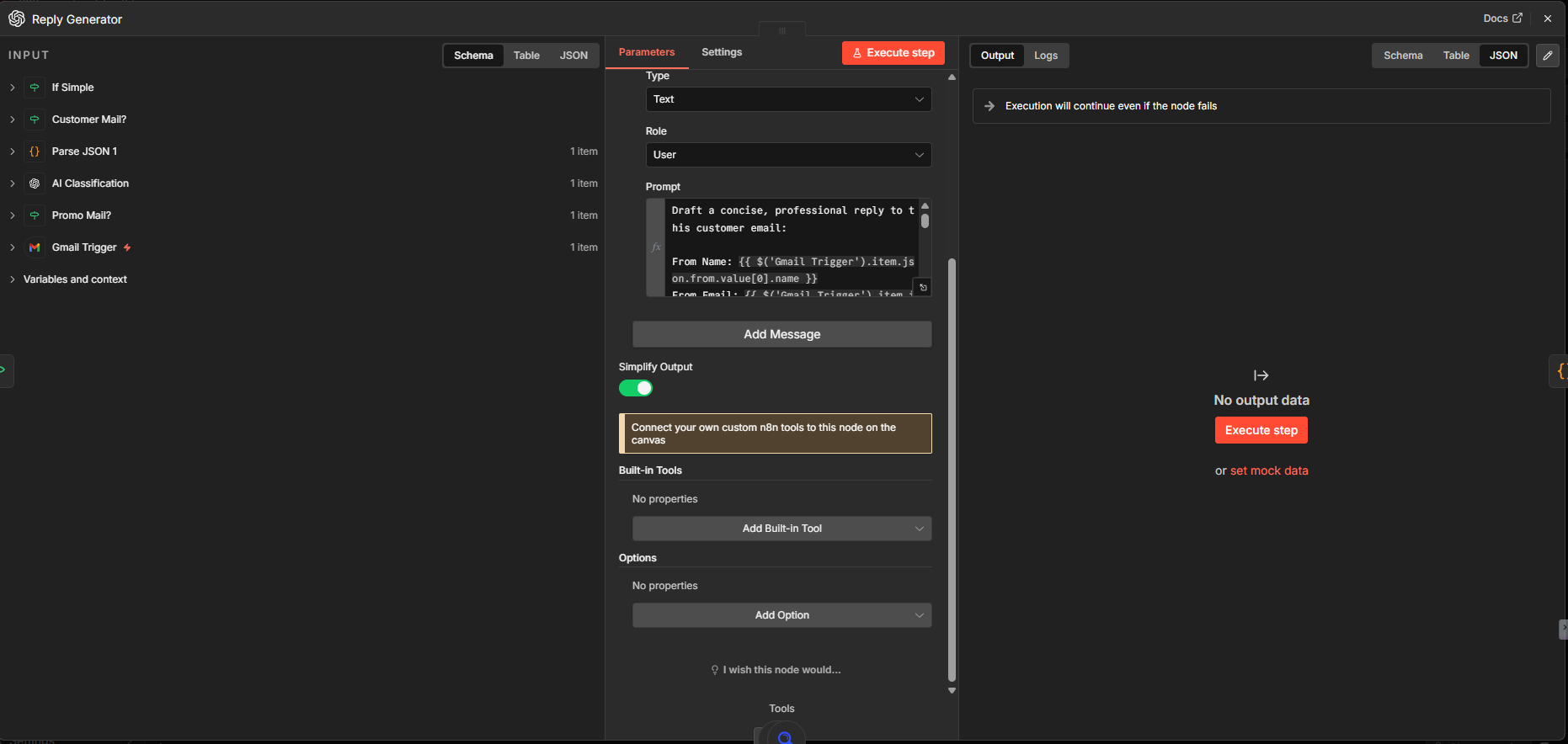
Using the “Message a model” action of the OpenAI node, I generated a reply to the customer mail.
Model = gpt-5.4-mini
Added a User prompt to create a concise, professional reply. Prompt also contains the signature to use, guardrails, output format (JSON) and the company FAQ with links to answers.
There are 2 tools attached to the node: SearXNG and SerpAPI. These can be used by the model to search the Internet and find the company FAQ answers before generating the reply. So, there is a section for Tools in the User prompt. Prompts and workflows are available; Download links will be provided. Note that there is a Parse JSON node after this to get a proper JSON output and process further.
Draft Saving
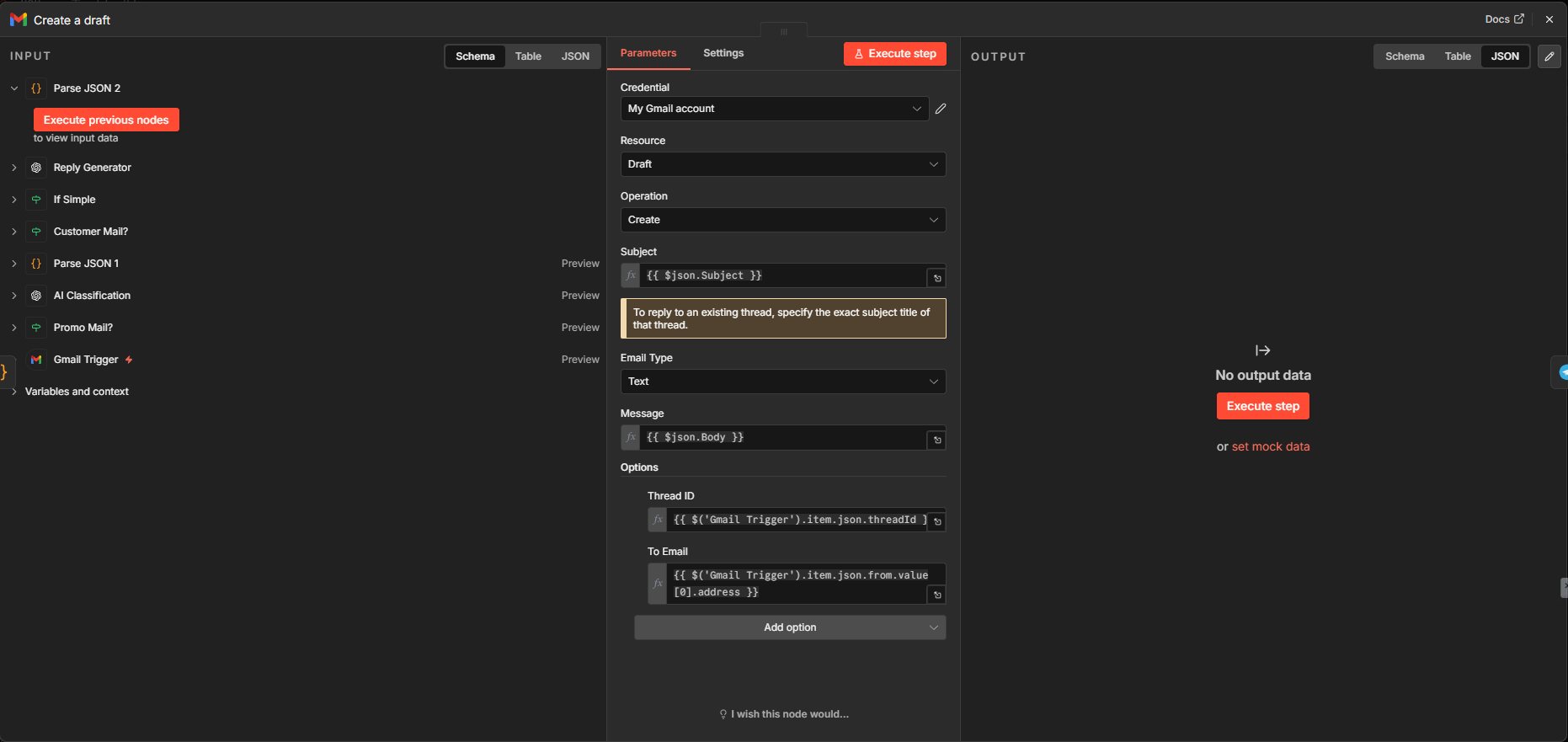
Next, I used a Gmail node with the action “Create a Draft”. This takes the draft from the input JSON and saves it in Gmail in the same Thread. Now when you open Gmail, the Draft appears in the same conversation, instead of being saved to a separate folder. The Thread ID field is used for this – it identifies the unique conversation. I also used the “To Email” field, as it fills in the recipient of the draft automatically.
Create a Trello Card
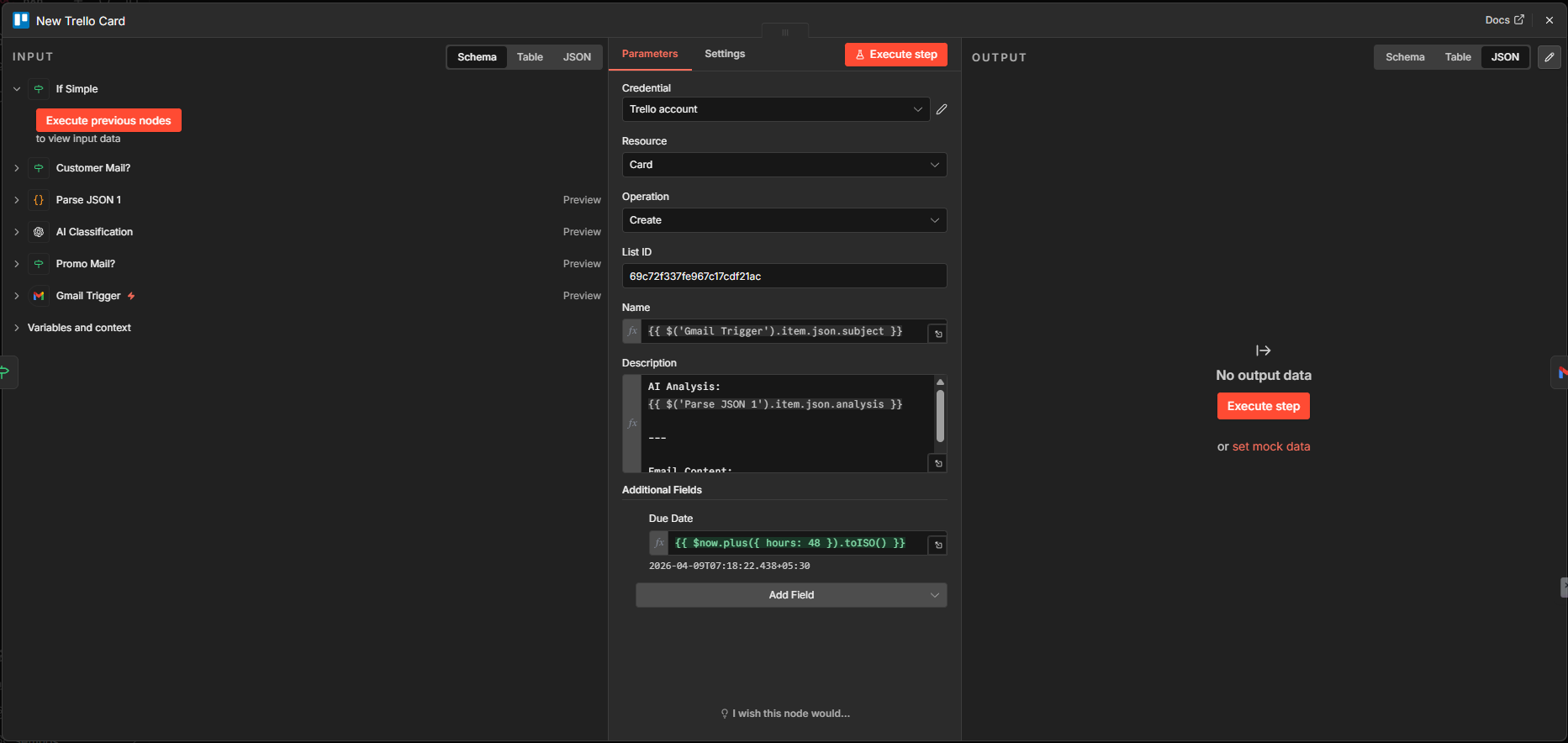
For emails that need human review, I used a Trello node with the “create a card” action to create a card with the card name set to the email subject. The card description has 2 items:
- AI Analysis from the AI Classification step
- Email Body Content
I also set the due date to 2 days after ticket creation using the expression {{ $now.plus({ hours: 48 }).toISO() }}
Benefits of n8n Email Automation
n8n email automation offers many useful benefits, especially for beginners and small businesses. It helps you save time by handling repetitive email tasks automatically, so you do not need to reply to every message manually.
It also improves response speed, which is important for customer satisfaction. When customers get quick replies, they are more likely to trust your service. At the same time, it reduces human errors and keeps your workflow organized.
Another key benefit is scalability. As your business grows and you receive more emails, the system can handle the increased load without extra effort. This makes n8n email automation a smart and cost-effective solution for managing customer communication.
Things to Be Careful About
When using n8n email automation, it is important to be careful with a few things. AI is helpful, but it can sometimes give incorrect or unclear replies, so always test your workflow properly.
It is better to start by saving replies as drafts instead of sending them automatically. You should also make sure that sensitive customer data is handled securely. Over time, you can improve your prompts and make the system more accurate.
Conclusion
In this guide, you learned how to build a simple n8n email automation system using Gmail, AI, and Trello. This workflow helps you manage customer emails, send faster replies, and stay organized without doing everything manually.
Even if you are a beginner, you can start small and improve your system step by step. Automation like this can save time and make your work much easier.
If you want a custom solution built for your business, feel free to reach out through my Contact Page. I can help you design and set up powerful n8n automation workflows tailored to your needs.
